How to Choose a VPN for Streaming (What Actually Works in 2026)
A VPN isn't the "unlock every country's Netflix" button it's sold as — here's what it really does, and the five things that matter when you buy one.
By Himanshu Bhatt· August 17, 2026

Prerequisites & What You Need Before Starting
- Know what a VPN is and what a VPN does NOT protect you from
- The exact streaming platforms and subscription plans you currently pay for
- A device connected to your home TV or laptop to run speed tests on fast.com
- A VPN does not unlock other countries' full libraries — Netflix serves only its globally-licensed titles over a VPN.
- It does reliably get you your own subscriptions while travelling, and private streaming on public Wi-Fi.
- Match speed to what you watch: Netflix asks for 3 Mbps (HD), 5 (Full HD), 15 (4K) — leave headroom for VPN overhead.
- Check device support first: a Smart-TV/Fire TV app or a router setup, plus enough simultaneous connections for the household.
- Buy on the money-back guarantee — test the exact services you care about within the refund window, then commit.
Streaming is the number-one reason people buy a VPN — and the most over-promised. This guide separates what a streaming VPN genuinely does from the marketing, then gives you a five-point checklist to choose one that works for your services, your TV, and your budget.
Verify service unblocking reliability for your specific platforms
Ignore generic marketing claims and verify that the provider actively refreshes server IP pools for the streaming services you use (Netflix, BBC iPlayer, Disney+, Prime Video). Streaming platforms regularly blacklist datacenter IP blocks, requiring dedicated provider engineering to maintain unblocking access.
Calculate bandwidth requirements and protocol overhead
Streaming video demands stable throughput: 3 Mbps for standard HD (720p), 5 Mbps for Full HD (1080p), and 15–25 Mbps for 4K Ultra HD HDR. Select providers running WireGuard or proprietary modern protocols to minimize encryption latency and maintain seamless buffering headroom.
Confirm native application support for your television setup
Because most video streaming occurs on large displays, confirm the provider offers native applications for Amazon Fire TV Stick, Android TV / Google TV, and Apple TV. For smart TVs that do not support VPN apps (e.g. LG webOS, Samsung Tizen), verify router compatibility or Smart DNS availability.
Assess simultaneous connection limits for household streaming
Evaluate how many screens stream concurrently in your home. Ensure your chosen VPN tier includes at least 5 to 10 simultaneous device connections, or offers whole-network router installation capabilities to prevent connection dropouts during family viewing.
Test playback during the money-back guarantee window
Subscribe with a 30-day money-back guarantee and immediately test performance. Connect to your desired regional server, open fast.com to confirm location detection and speed, and stream 4K content during peak hours. If constant buffering or proxy errors occur, claim a prompt refund.
On this page(show)(close)
Streaming is the single most common reason people buy a VPN — and it's the reason with the biggest gap between the sales pitch and reality. The pitch is "one VPN unlocks every country's Netflix, Disney+ and Hulu." The truth in 2026 is more useful and more honest: a VPN is excellent for a few specific streaming jobs and largely useless for the one it's most sold on. This guide draws that line first, then walks you through the five things that actually decide whether a streaming VPN is worth your money.
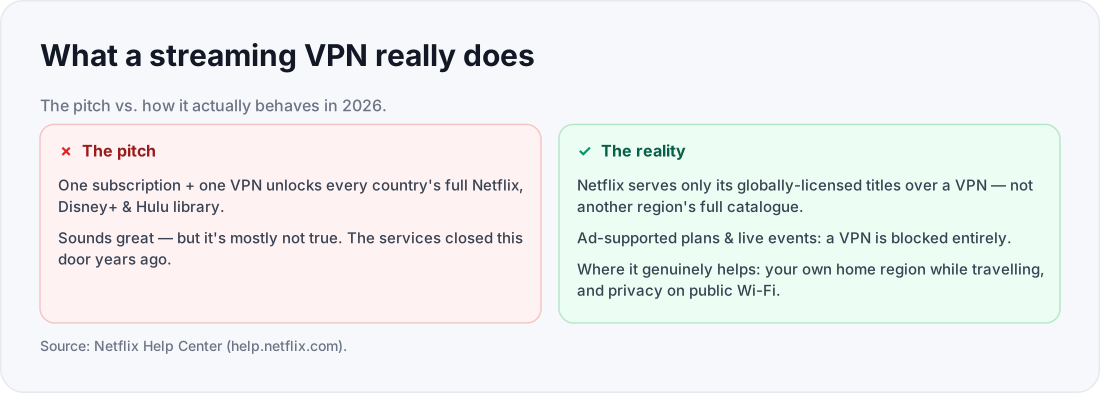
First, what a streaming VPN actually does (and doesn't)
Start with the disappointment so the rest of the guide is useful. Streaming services geo-lock their catalogues for licensing reasons, and they've spent years learning to spot VPNs. Netflix is the clearest example: connect through a VPN and, by its own policy, you're shown only the titles Netflix holds worldwide licences for — its own originals like Squid Game or Stranger Things — not another country's full library. On its ad-supported plan, and during live events, a VPN is blocked entirely. So the "watch American Netflix from anywhere" promise mostly doesn't hold. What a VPN is reliably good at: reaching the subscriptions you already pay for when you travel (your home account, from a hotel or abroad), keeping your streaming private on shared or public Wi-Fi, and unblocking services that are less aggressive than Netflix. Buy for those jobs and you'll be happy; buy for "unlock every library" and you won't.
Step 1: Does it work with the services you use?
Ignore generic "works with Netflix" badges — the only thing that matters is whether it works with the specific services and plans you pay for, from your country, this month. Because providers and streamers play constant cat-and-mouse, no honest guide can promise a given VPN unblocks a given service permanently. That's exactly why the money-back guarantee (Step 5) is the real feature: it lets you verify unblocking yourself before you commit. Favour providers that are specific about which services they support and that keep it current, over ones that just print logos.
Step 2: Enough speed for the quality you watch
Encryption plus a longer path to a distant server always costs some speed, so a streaming VPN has to clear your quality target with headroom to spare. Netflix's own recommended download speeds are a good yardstick for any service: 3 Mbps for HD, 5 Mbps for Full HD, and 15 Mbps for 4K/Ultra HD. Aim comfortably above the figure for the quality you actually watch, connect to a nearby server rather than a far-flung one, and prefer a modern protocol such as WireGuard for the least overhead. If your connection barely meets the target without a VPN, 4K over a VPN will buffer.
| What you watch | Netflix's recommended speed | Practical target with a VPN |
|---|---|---|
| HD (720p) | 3 Mbps | ~8–10 Mbps |
| Full HD (1080p) | 5 Mbps | ~12–15 Mbps |
| 4K / Ultra HD | 15 Mbps | ~25 Mbps+ |
Step 3: It has to work on your TV
Most streaming happens on a television, and that's where a lot of VPNs quietly fall short. Check the provider offers a native app for your platform — Amazon Fire TV / Firestick, Android TV, Apple TV — because many smart TVs can't install a VPN app at all. For those, the alternative is running the VPN on your router, which protects every device on the network (the TV included) but is fiddlier to set up and harder to switch server locations on. If a provider only makes phone and laptop apps, it's a poor fit for a TV-first household.
Step 4: Enough simultaneous connections
Count the devices you'd want streaming at once — living-room TV, a couple of phones, a tablet, maybe a laptop — and make sure the plan's simultaneous-connection limit covers them. If you run the VPN on your router, note that the whole household usually counts as a single connection, which is one way around a tight limit. This is an easy spec to overlook and an annoying one to hit mid-film.
Step 5: A money-back guarantee you can actually use
This is the one that protects your wallet. Because you can't know for certain a VPN unblocks your services until you try, buy from a provider with a clear money-back guarantee and treat the refund window as a free trial: sign up, test the exact services you care about (Step "How to test" below), and cancel for a refund if it doesn't deliver. While you're at it, prefer a provider with an audited no-logs policy — you're routing all your viewing through it — and be wary of free VPNs for streaming specifically: free tiers cap speed and data and are the first server addresses streamers block. A paid plan tested inside its guarantee is the safer buy.
How to test it before the refund window closes (verification)
Once you've subscribed, verify it in five minutes. Connect to a server in the country whose content you want, then open fast.com — Netflix's own speed test — and confirm it shows that country and a speed comfortably above your quality target; if it still shows your real country, the VPN isn't routing correctly. Then open the actual service and play something in your target quality for a few minutes. If it plays cleanly, you're done. If you get a proxy error or constant buffering, try a different server in the same country first, and if it still fails, claim the refund — that's what the guarantee is for.
Frequently asked questions
- Is streaming with a VPN legal?
- In most places, yes. VPNs are legal in the US, UK, EU, and Canada. Using a VPN to change your streaming region generally breaks the service's terms of use, not any law, and account bans are extremely rare — usually the worst that happens is an error message.
- Will a VPN let me watch another country's full Netflix library?
- Mostly no. By Netflix's own policy, a VPN shows you only its globally-licensed titles (its originals), not the target country's full catalogue — and on the ad-supported plan and live events, VPNs are blocked entirely. A VPN is far more reliable for reaching your own subscription while travelling.
- Why does my show buffer when the VPN is on?
- Encryption and a more distant server add overhead. Connect to a nearer server, switch to a modern protocol like WireGuard, and make sure your line clears the speed target for your quality (3/5/15 Mbps for HD/Full HD/4K) with room to spare.
- Do I need it on my TV, or is my phone enough?
- If you stream on a TV, buy a VPN with a Fire TV / Android TV / Apple TV app, or set it up on your router — many smart TVs can't install a VPN app at all, so a phone-only VPN won't help the big screen.
- Is a free VPN fine for streaming?
- Usually not. Free tiers cap speed and data and are the first to get blocked. Use a reputable provider's money-back guarantee to test a paid plan risk-free instead.
Where to go next
Drafted with AI assistance, verified against the cited study and primary sources, and edited by TechToolsHQ staff.
Enjoying this guide?
TechToolsHQ is an independent, reader-supported tech platform. If this article saved you time, solved a tough problem, or helped you learn a new skill, consider supporting our work. Your support helps us keep our in-depth series 100% free and updated for everyone.
Get buying guides in your inbox
Practical, no-hype guides to choosing the right tech.
No spam·Unsubscribe any time·Privacy-first